
You’ve received a Document for Signature
Posted in: Simulation

Why We Run Phishing Simulations
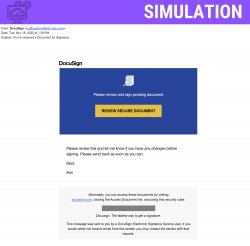
Cybersecurity threats are constantly evolving, and the best defense we have is an informed and vigilant team. We run phishing simulations—like the fake DocuSign you recently received—to provide a safe, hands-on opportunity to practice recognizing the latest attack techniques. This is your chance to sharpen your skills so you can spot and stop real criminals trying to steal data and compromise our network.
Why this looks valid:
-
Trusted Name: It used a familiar service (DocuSign) and a simple, friendly signature (“Best, Ann”).
-
Urgency: The message said, “Please send back as soon as you can,” creating pressure to click fast.
The Two Biggest Red Flags
If you learn to check these two things, you will spot 99% of phishing attempts:
Flag 1: The Link Address
-
The Problem: The most critical red flag in this email was the address behind the link.
-
What to Check: Hover your mouse over the link (DO NOT CLICK!).
-
The Give Away: The URL in the fake email started with
https://doc-m0ntclair.internalportal.net/. A legitimate DocuSign link must start withdocusign.com. The non-matching, slightly misspelled domain is the sign of a scam.
Flag 2: Suspicious Process
- The email provided the main link and a long, unique “Security Code” at the bottom as a second access option.
-
The Lesson: Attackers often add multiple official-looking details (like the code and the boilerplate text) to make the scam seem more legitimate. They want these details to distract you from the real threat: the malicious link destination (Flag 1). Always prioritize checking the link address.
Your 3-Step Action Plan
This is all you need to do every time you receive an urgent request:
-
STOP: Don’t click anything immediately.
-
HOVER & CHECK: Check the link destination address. If it doesn’t match the expected, official domain (e.g.,
docusign.comormontclair.edu), treat it as dangerous. -
VERIFY & REPORT: Follow the procedure below to safely report the suspicious email.
Reporting a Phishing Email
If you identify a suspicious email, your action is crucial to protecting the entire organization. DO NOT forward the message or reply to the sender.
-
User the Phish Alert Button (PAB): Click the PAB hook immediately. This safely moves the email off your screen and alerts Information Security.
- Psst! If the email you received ends up being a simulation the PAB will tell you!
-
Additional Notes:
- Do you think you’ve fallen for a scam? Did you share personal information? Downloaded malicious content? Please contact the IT Service Desk at 973-655-7971 option 1 or email itservicedesk@montclair.edu.
- Use the Knowbe4 Phish Alert Button (PAB) to report malicious emails directly to the Information Security team for review. If you are not using the Gmail client please forward the email to phishfiles@montclair.edu.
- Always use the “hover over” technique to check web links before clicking! For more security tips please visit our Security Tips page.