
When you select a photo for use on your website, you must make sure you save that image in a file format that’s appropriate for use on the web. Even images sourced from the University’s official photo repository need to be resized – those images are very large for use in printed publications.
You should never use photos directly from your phone or camera as those files include personal information in the file’s metadata. Saving the image for the web removes this personal information, protecting your privacy.
JPEG Images
By far the most common image format used on our website is JPEG. The JPEG compression format is specifically designed for photographs and it does a very good job of handling the sort of real-world details that a camera captures.
The GNU Image Manipulation Program (GIMP) is free open-source software for editing and compressing photos. It can be downloaded from the GIMP website for use on any University machine and on your own personal computer as well. For most simple image editing tasks it’s very similar to Photoshop CC, while being faster and more responsive.
Resizing an Image in GIMP
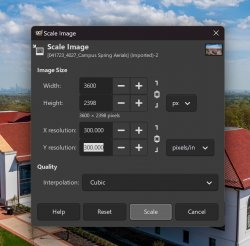
First, open your full-size original image in GIMP. Open the Image menu and then the Scale Image item. Next set the image width or height in the Scale Image dialog box.
Saving for Web in GIMP
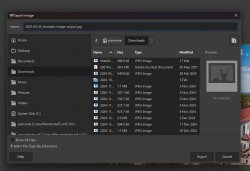
When you want to save your image for the web in GIMP, select the File menu and then Export As …
Give your image a name that ends with .jpg – this is how GIMP knows you want to make a JPEG image. Remember that when you save files for the web, you should only use lowercase letters, numbers, hyphens, and underscores in the filename. Don’t use uppercase letters, punctuation, or spaces.
Make sure that the Optimize checkbox is checked (it should be the only one checked), set Quality to 80, and set Subsampling to 4:2:0 (chroma quartered).
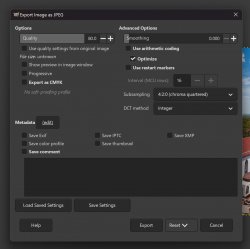
Finally, click Export to save the image.
Adobe Photoshop CC is the most popular photo editing tool for web editors. While the University does have licenses for Adobe Photoshop CC, it’s a very expensive piece of software intended to do a lot of very intricate photo editing. If you are only looking to resize and compress a photo, you should download and try GIMP first to see if it meets your needs.
Resizing and Image in Photoshop CC
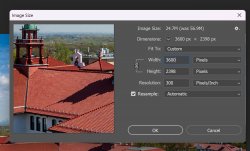
First, open your full sized image in Photoshop CC. Open the Image menu and select Image Size. Next, set the image width or height in the Image Size dialog box.
Saving for Web in Photoshop CC
When you want to save your image for the web in Photoshop CC, select the File menu and then Export then Save for Web (Legacy).
First select JPEG as your file type (the unlabeled drop-down menu underneath “Preset”). Make sure that Optimized and Convert to sRGB are checked, and set Quality to 60.
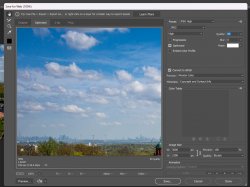
Finally, click “Save …” to select a file name and save the image. Remember that when you save files for the web, you should only use lowercase letters, numbers, hyphens, and underscores in the filename. Don’t use uppercase letters, punctuation, or spaces.
We do not recommend using either Adobe Express or Adobe Photoshop Express for work on the website. These tools do not offer the necessary image resizing and compression settings and, as a result, are not capable of ensuring correct output.
PNG Images
While PNG images can be useful for creating images with translucency, our website design does not have any instances where one image might overlap another. PNG images also tend to be much much larger than JPEG images when displaying photographic images. It would be best only to use PNG images when uploading computer-generated artwork or screenshots.
Due to the way the website handles responsive images, be advised that the PNG images will be converted to JPEG when we send them out to visitors. We only recommend using PNG for screenshots of text since that will give the image resizer the cleanest possible source to start with.
GIF Images
GIF images provide two benefits: animation and transparency – but they have two huge drawbacks: large file sizes and a maximum of 256 colors in the file.
The site supports the use of GIF images for animation but we recommend using this feature sparingly since the page will quickly become too large for use on mobile devices if it’s too overloaded with GIF images.

SVG Images
SVG images are made up of vectored objects (lines, polygons, rectangles, circles) and can be scaled to any resolution. They’re ideal for displaying vector art in high resolution while also delivering on tiny file sizes but they can be extremely difficult to produce.
The website supports SVG images in exactly the same way that it supports other images. You can upload SVG files to your media library and place them on your pages in the caption shortcode to have them resize automatically.