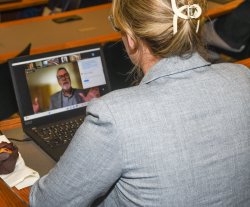
Whether you are preparing in advance or responding to an unexpected campus closure, this resource will help you keep your course on track with minimal disruption to teaching and learning. Use the checklists below to guide your preparation and your response when a shift to remote instruction is needed.
Faculty who have taken a few proactive steps in advance are better positioned to maintain course continuity and reduce stress for themselves and their students. Designing your course with online-ready elements from the start means that any interruption causes far less disruption to the learning experience.
Table of Contents
- Proactive Preparation List
- Quick-Start Checklist (Day-Of Steps)
- Syllabus Course Continuity Statement
- Synchronous or Asynchronous?
- Managing Assessments & Grading Remotely
- Supporting Student Access & Equity
- Accessibility in a Remote Learning Environment
- Teaching Tools & Resources (at a Glance)
- Additional Support
Proactive Preparation Checklist
These are steps to take at the start of each semester so your course is ready if a disruption occurs.
Canvas Course Readiness
- Ensure your Canvas course is published and accessible to students.
- Organize course content into modules so students can navigate independently.
- Post your syllabus in Canvas, including a course continuity statement (see template below).
- Verify that all assignment due dates are entered and accurate in Canvas.
- Enable Canvas Announcements so students receive notifications via their Montclair Gmail accounts.
- Confirm that your contact information and preferred communication method are clearly stated in your syllabus and Canvas course.
- Familiarize yourself with how to post a Canvas Announcement before you need to use it in a hurry.
Zoom
- Log into your Zoom account at least once via SSO (montclair.zoom.us) using your NetID and password to confirm your account is active.
- If your course includes synchronous sessions, create a recurring Zoom meeting and post the link in Canvas.
- Familiarize yourself with Zoom functions such as Breakout Rooms, Chat, Poll, and Screen Sharing
Panopto Video Recordings
- Set up your Panopto account and practice recording a short test video.
- Confirm that Panopto is integrated in your Canvas course so you can share recordings directly with students.
- Review how to save Zoom recordings to Panopto for students to watch after a session.
Assessments
- Review your major assignments and consider whether they could be submitted digitally if needed.
- Ensure any in-class quizzes or exams have an online alternative ready in Canvas Quizzes.
Accessibility
- Review the Panorama accessibility reports for your course files and pages in Canvas and address any flagged issues.
- Ensure any videos you share include accurate captions. Panopto provides automatic captioning, but captions should be reviewed for accuracy before sharing.
Quick-Start Checklist (Day-Of Steps)
When a disruption is announced and you need to shift to remote instruction immediately, work through the following steps.
- Post a Canvas Announcement to notify students of the change.
- Confirm whether your class will meet synchronously via Zoom or shift to asynchronous activities for the day or week.
- If meeting via Zoom, share the meeting link in your Canvas Announcement and/or in the course Modules.
- If shifting to asynchronous instruction, post a clear plan in Canvas outlining what students should do, read, watch, or submit in place of the in-person class.
- Adjust any upcoming due dates if needed and communicate the changes clearly to students.
- If synchronous: Start your Zoom session from within Canvas or directly via montclair.zoom.us. Record the session and save it to Panopto so students who cannot attend live can access it later.
- If asynchronous: Record a brief lecture or overview video using Panopto and post it in Canvas. Even a short 5 minute video maintaining your presence goes a long way for students.
- Post any slides, readings, or materials students will need directly in Canvas.
- If a graded in-class activity or exam was planned, post an alternative in Canvas Assignments or Canvas Quizzes.
- Use Canvas SpeedGrader to provide written or audio feedback on student submissions.
- Consider using a rubric in Canvas to streamline grading and provide consistent feedback.
Move your office hours to Zoom for the duration of the disruption and post the Zoom link and updated hours in a Canvas Announcement or on your Canvas course homepage.
Remember to keep your workload expectations consistent with what you would have covered in a normal class session. A common and understandable mistake during emergency pivots is assigning additional work to compensate for lost class time, but this increases student stress and cognitive load without improving learning outcomes (Sweller, 1988). When in doubt, do less, and do it well.
Syllabus Course Continuity Statement
It is recommended that you include a statement like the following in your syllabus at the start of each semester so students know what to expect in the event of a disruption.
“In the event of an emergency, course requirements, deadlines, and grading percentages are subject to change when necessitated by revised course delivery, semester calendar, or other circumstances. Information about changes in this course can be obtained on the Canvas course page or by contacting me at [your email address]. If the course is not able to meet face-to-face, students should immediately log onto Canvas and read any announcements and/or alternative assignments. Students are also encouraged to continue readings and other assignments as outlined on this syllabus or any subsequent communication.”
Synchronous or Asynchronous?
When shifting to remote instruction, one of the first decisions to make is whether to hold class synchronously via Zoom or to provide asynchronous activities. Use the following guidance to help you decide.
- Your class is scheduled at a time when most students are expected to be available.
- The content for that session benefits from live discussion, demonstration, or interaction.
- Students are already accustomed to attending class at a set time and you want to maintain that structure.
- You are comfortable facilitating a Zoom session.
- Students may be in different time zones or dealing with the same disruption that caused the closure (e.g., a snowstorm affecting their ability to connect reliably).
- The content can be effectively delivered through a recorded video, readings, or a Canvas Discussion.
- You want to give students more flexibility to engage with the material on their own schedule.
- You are not comfortable facilitating a live Zoom session on short notice.
Note: You can also combine both approaches. For example, you might post a recorded lecture asynchronously and host an optional Zoom session for questions.
Before finalizing your plan, take a moment to review any accommodation letters for students in your course. A shift in modality can affect students whose accommodations depend on in-person formats, such as captioning, extended time, or note-taking support. If you have students with active accommodations, consider reaching out directly or contacting the Disability Resource Center for guidance on how to honor those accommodations in an online format.
Managing Assessments & Grading Remotely
Maintaining assessment continuity during a disruption does not need to be complicated. Here are some practical approaches:
- For in-class quizzes or exams, Canvas Quizzes allows you to create auto-graded assessments with multiple question types including multiple choice, true/false, short answer, and essay. You can set time limits, availability windows, and attempt limits.
- For written assignments, Canvas Assignments allows students to submit files, images, or text directly in Canvas. You can use Canvas SpeedGrader to review submissions and provide written or audio feedback. Turnitin is integrated in Canvas and can be enabled for originality checking.
- For participation and discussion, Canvas Discussions replicate in-class conversation by allowing students to post and respond to each other asynchronously. You can make discussions graded or ungraded and set them up for the whole class or for small groups.
- For project-based work, consider using Google Docs, Slides, or Sheets for collaborative assignments. Students can work together in real time or asynchronously and share their work with you directly.
Supporting Student Access & Equity
In certain emergency situations, some students may face challenges accessing course materials due to limited internet connectivity or access to a personal computer. When possible, avoid requiring students to complete high-bandwidth activities such as streaming lengthy videos on a tight deadline. Provide materials in multiple formats where possible. For example, if you post a video lecture, also provide a written transcript or outline. This supports students with limited connectivity as well as students with disabilities.
Consider extending deadlines by 24 to 48 hours during a disruption to account for varying student circumstances.
Students who need technology support should contact the University IT Service Desk at itservicedesk@montclair.edu or (973) 655-7971, option 1. The university offers support resources including loaner equipment for eligible students.
Accessibility in a Remote Learning Environment
Accessibility matters in every learning environment, and a shift to remote teaching is a good opportunity to make sure your materials are reaching all of your students. Here are a few tips to help ensure accessibility standards are met:
- Captions: Any video content you share with students should be captioned. Panopto provides automatic captioning, but these captions should be reviewed and corrected before sharing. Zoom also generates live captions during sessions.
- Document Accessibility: Use Canvas’s Panorama tool to check the accessibility of your course files and pages. Panorama provides a color-coded accessibility score for each file/page and step-by-step guidance for improving it.
- Universal Design for Learning: UDL encourages providing multiple means of representation, action and expression, and engagement. When shifting remotely, try to provide content in more than one format and give students options for how they demonstrate their learning.
For more information, visit the ITDS Designing Accessible Learning Environments page and the Universal Design and Accessibility resources in the Canvas Faculty Orientation course.
Teaching Tools & Resources (at a Glance)
Canvas is Montclair’s Learning Management System (or LMS). All Montclair courses have a Canvas site which can be used for posting course content, communicating with students, managing assignments, and grading. Visit montclair.edu/canvas for more information.
All Montclair faculty and staff have access to Zoom Licensed, which places no time limit on meetings. You can access Zoom via SSO at montclair.zoom.us using your NetID and password.
For additional Zoom support, contact the IT Service Desk at itservicedesk@montclair.edu or (973) 655-7971, option 1.
Panopto is a video recording and hosting platform that is integrated with Canvas. Use it to record lectures, share video content, and provide auto-captioned recordings to students. Visit the ITDS Panopto page for documentation.
Google Workspace for Education is available to all Montclair faculty and students through your Montclair email. The Google Workspace includes tools for collaborative or independent assignments, including Google Docs, Slides, Sheets, and Forms.
Canvas discussions provide an easy way for instructors to create and facilitate interaction amongst students. Online discussions encourage active participation from students and help replicate discourse that may occur in a face-to-face classroom. Discussions can be created as an assignment for grading purposes (which is integrated with Canvas Gradebook), or simply serve as a Q & A to answer students’ questions, or a forum for students to share information. Group discussions may be set up so that small groups of students may converse.
Canvas assignments are used to accept submissions by students, such as files, images, text, URLs, etc. Assignments can be created for everyone in the course or differentiated by student, section, or student groups.
Canvas Quizzes allow for a variety of question types and can be used for formative and summative assessments. These quizzes can be configured for automatic grading or feedback, depending on the question type, and many additional settings. A column in the grade book is created for each quiz where you can manually enter a grade for quizzes or exams taken on paper.
Padlet is an online collaborative bulletin board where students can post text, images, links, and videos. Useful for brainstorming, sharing work, and replicating class discussion activities.
These social annotation tools allow students to collaboratively annotate readings and digital texts. Both Perusall and Hypothes.is are available to Montclair faculty and can be seamlessly integrated into Canvas.
Additional Support
Remember: you are not on your own. The following contacts and resources are available to help.
- ITDS Appointment Scheduler: Schedule a one-on-one consultation with an instructional designer or technology trainer for personalized support. Same-day appointments are often available. Visit itds.as.me to book.
- ITDS Workshops: ITDS offers regular workshops on Canvas, Zoom, Panopto, and a wide range of pedagogical and technology topics. Visit the ITDS workshop calendar to register.
- Canvas Faculty Orientation: A self-paced Canvas course with step-by-step how-to guides for all major Canvas features. Available to all Montclair faculty at any time.
- University IT Service Desk: For technical support with Zoom, Canvas, or any university technology. Contact itservicedesk@montclair.edu or call (973) 655-7971, option 1.
For broader strategies on maintaining instructional continuity, visit the Planning for Disruption resources hosted by the Office of Faculty Excellence.
CAST. (2018). Universal design for learning guidelines version 2.2. http://udlguidelines.cast.org
Hodges, C., Moore, S., Lockee, B., Trust, T., and Bond, A. (2020). The difference between emergency remote teaching and online learning. EDUCAUSE Review. https://er.educause.edu/articles/2020/3/the-difference-between-emergency-remote-teaching-and-online-learning
Pace University. (2015). Academic continuation plan. https://www.pace.edu/sites/default/files/files/ITS/teaching-learning/academic-continuity-plan/Academic%20Continuation%20Plan%20-%2010-2-2015.pdf
Schon, D. A. (1983). The reflective practitioner: How professionals think in action. Basic Books.
Sweller, J. (1988). Cognitive load during problem solving: Effects on learning. Cognitive Science, 12(2), 257-285.