
Panopto Recordings in Canvas for Students
Creating a Panopto Recording in Canvas:
Add your Panopto Recording to a Panopto Assignment Folder
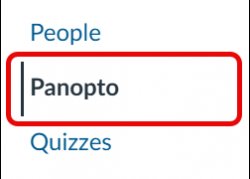
- Click on Panopto in the course menu.
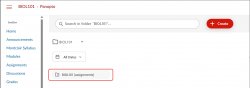
- Click on the Assignment folder for the course – Course name [assignments].
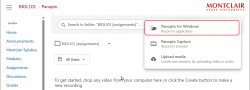
- Click Create and click on Panopto for Windows or Mac.
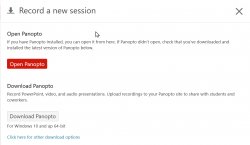
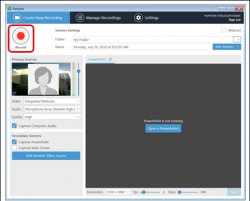
- If Panopto is installed on the computer, click Open Panopto. If Panopto is not installed, click Download Panopto and follow the prompts to download and install the program. When Panopto finishes installing, it automatically opens in the Create New Recording window.
- Click on the Record button and click on Stop when done.
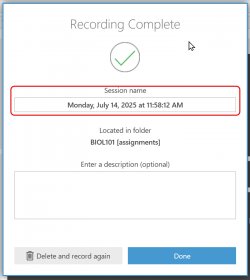
- By default, the title of the recording is the date and time. It is recommended to change the title to your name and the name of the assignment.
- Click Upload.
- You will be brought to Manage Recordings showing that your recording is being processed. Close out of Manage Recordings by clicking on the X.
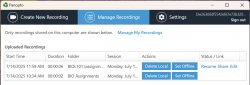
- When you close out of Manage Recordings navigate back to Canvas. To refresh, click on Panopto in the course menu and click on the Assignments.
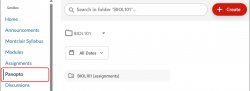
You will now see your recording in the assignments folder – Course Name [assignments].
Add your Panopto Recording to a Canvas Assignment
If this recording is part of an Assignment or Discussion you can upload the recording to it.
- Click on the Assignment or Discussion.
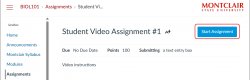
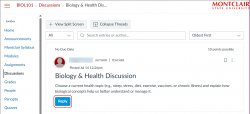
- Click on Start Assignment for an Assignment or Reply for a Discussion.
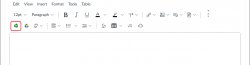
- Click on Apps and choose Panopto.
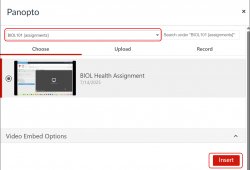
- Your recordings will be listed under the Choose Select the recording and click Insert.
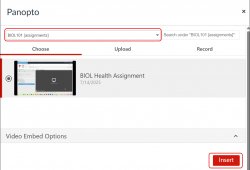
NOTE: If you do not see your recording, make sure you are in the Assignments folder – Course Name [assignments]. To ensure you are in the Assignments folder, type “assignments” in the search then select the Assignments folder.
- Click Submit Assignment or Post Reply.