
Goodbye Desk Phones, Hello Flexibility!
We’re excited to announce that Zoom Phone will soon be available across the university, bringing a modern, flexible, and user-friendly communication experience right to your Zoom application. This upgrade will streamline processes and enhance how we connect.
Before using Zoom Phone, you must first know how to do video conferencing on Zoom.
What is Zoom Phone?

Introducing Zoom Phone
Zoom Phone is the university’s new cloud-based calling system, built directly into the Zoom platform. It enables you to place and receive calls from your computer, mobile device, or—when necessary—supported desk phones. Regardless of the device you use, your university phone number remains with you.
Transition from Legacy Services
The university is moving away from older phone systems and consolidating communication on Zoom. This means desk phones, virtual phones, and conferencing will all be delivered through Zoom. Each department will have a Project Champion who will serve as additional resources and point of contact for their departments throughout this rollout.
Why the Change Matters
Zoom Phone is designed to be flexible and sustainable. It reduces reliance on physical desk phones, simplifies communication across the university, and supports modern work styles—from the office, from home, or on the go. By shifting to a virtual-first approach, the university avoids the ongoing costs and waste associated with replacing aging phone hardware.
Use of Desk Phones
The new standard is a virtual phone accessible through your computer or mobile device. Each Montclair State University Zoom Phone user may request one standard USB headset at no charge. Free headset requests end after April 30, 2026. After this date, new or replacement headsets will be funded by the department requiring a replacement.
Zoom Phone Setup
- Claiming Your Account
- Sign in to the Zoom Web Portal
- Complete Your Initial Setup
- Set Your Emergency Address
- Turn on Location Permissions
- Record Your Voicemail Greeting
- Set Business, Closed, and Holiday Hours
All Zoom Phone users must complete a brief setup process in the Zoom web portal. These steps ensure your calls, voicemail, and emergency information work correctly.
Claiming Your Account
If you have not yet claimed your Zoom account, please following these directions to sign in with SSO. You may skip this section if you have already claimed your account.
Sign in to the Zoom Web Portal
- Go to the university Zoom portal, montclair.zoom.us, and choose Sign In.
- Open the Phone section in the left navigation menu.
Complete Your Initial Setup
When you first open the Phone settings, you’ll be asked to:
- Choose your country – sets how numbers are dialed.
- Select your time zone – used for business hours, closed hours, and holiday hours. You can update this later in your profile if needed.
Create a voicemail PIN – required if you ever check voicemail from a physical desk phone or a non-Zoom service (like dialing in from a mobile carrier). The PIN is not needed for voicemail in the Zoom app or portal.
Click Save/Setup to confirm.
Set Your Emergency Address
For your safety, and proper identification to emergency services, you must provide an emergency 911 location:
- In the Phone settings, find the Emergency Address section.
- Add the physical location where you usually work (office, home office, etc.).
- Save your entry. You can add multiple addresses if you work in different locations.
- Return to the settings page and select the address you just entered as your default.
- This step ensures that if you dial 911, responders see the correct location.
Turn on Location Permissions
Zoom Phone can update your location automatically if you allow it.
On Desktop: Open the Zoom app → Profile icon → Settings → Phone → check the box to allow enhanced location access.
On Mobile: Open Zoom app → More → Phone → Location Permission → Open Settings → choose While Using the App or Ask Next Time.
Record Your Voicemail Greeting
In the Phone settings, navigate to Call Handling → Voicemail Greeting.
Choose one of three options:
- Text-to-Speech: type a message, and Zoom will generate the corresponding audio.
- Record by Computer: record your greeting directly in the portal (requires a microphone and browser permission).
- Upload Audio File: use a pre-recorded .mp3 or .wav file (under 10MB).
Save your greeting and select it as your active greeting.
Set Business, Closed, and Holiday Hours
By default, Zoom Phone rings 24/7. You can define your own schedule:
- In Call Handling → Business Hours, edit the days and times you’re available.
- Calls outside of business hours will go to voicemail by default; however, you can change this setting. Under Closed Hours, select what happens after hours (e.g., voicemail, forwarding, etc.). Under Holiday Hours, mark university holidays or personal days and adjust call routing as necessary.
- Transferring and Merging Calls
- Voicemail Transcription
- Customizing Business Hours and Do-Not-Disturb
- Delegating Calls to an Assistant
- Working Off-Campus
Once you’ve completed your initial setup, Zoom Phone offers a set of features that make daily calling easier and more flexible.
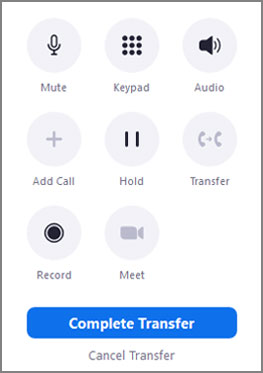
Transferring and Merging Calls
- Transfer: Move a call to another person, either directly (“blind transfer”) or with an introduction (“warm transfer”).
- Merge: Combine two calls into a single conference call, ensuring everyone is in the same conversation.
Voicemail Transcription
Voicemail will be automatically converted into text. View the messages in your Zoom app or in your email, so you can quickly scan messages without needing to listen to the audio.
Customizing Business Hours and Do-Not-Disturb
Define your work hours so that calls are routed differently during the day, evening, or weekends. After hours, calls may go to voicemail or be directed to another number. Use Do Not Disturb (DND) when you don’t want to be interrupted; calls will follow your routing rules.
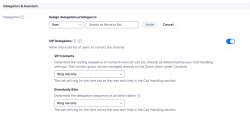
Delegating Calls to an Assistant
Share your line so that an assistant can answer on your behalf or place calls on your behalf.
Working Off-Campus
Zoom Phone works the same way on and off campus; VPN connectivity is not required. Calls will always display your university phone number, never your personal mobile number, as long as the call is placed from your Zoom mobile application using the Phone client.
Mastering Zoom Phone
To manage how Zoom Phone works for you, please see the options below to control your Zoom Phone experience. To view these options, and start managing your Zoom Phone experience today, go to montclair.zoom.us and select the Phone link on the left.
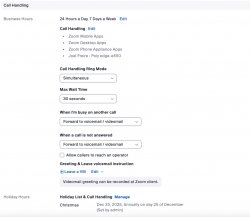
How to Set Your Call Handling Options
- If you install Zoom on your personal device, you can send calls to the desktop application and your mobile device, or turn off call routing to your mobile device. You can also set the order by which calls are routed to your devices, all in the Call Handling Edit button.
- If you would like to set certain users to receive your calls, you can easily do so using the Delegation and Assistant option in your Zoom Phone profile.
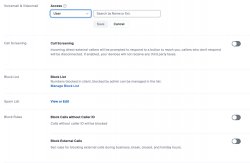
- Your Zoom Phone portal allows you to control who has access to your voicemail, manage call screening, block nuisance phone numbers, and block numbers without caller ID.
Support and Training
Quick Start Guides & Tutorials
- Quick Start Guide for Zoom Phone
- What Happens to My Voicemail on my Avaya Phone?
- Frequently Asked Questions
Video Training
For support, please contact the IT Service Desk.
By providing your telephone number through the Zoom website or application, you expressly consent to receive SMS (text) messages from Zoom. Message and data rates may apply. You may opt out of receiving further SMS messages at any time by replying “STOP” to any message received.
We do not share, sell, or disclose your mobile information with third parties without your consent, except as required to facilitate the delivery of communications related to our services or services you have requested. Your mobile information will not be shared with third parties for their direct marketing purposes.
By submitting your telephone number through the Zoom website or application, you acknowledge that you have read and understood this Zoom SMS Messaging Policy and agree to its terms.4
Purpose & Scope
This policy establishes the framework for transitioning the university community to Zoom Phone softphones. Approximately 90% of physical desk phones will be eliminated to promote sustainability, efficiency, and modern communication practices. This policy applies to all faculty, staff, and authorized users. Exceptions apply to designated emergency, public, and reception environments.
Softphone First
The Zoom Phone softphone application (desktop or mobile) is the default device for communication. Physical desk phones will be phased out unless an exception is approved based on documented business need.
Eligibility & Exceptions
Physical desk phones will only be provided in the following cases:
- Emergency or backup communication is critical (e.g., 911 accuracy).
- The location lacks reliable network or phone infrastructure (e.g., lobbies).
- The job role requires constant phone availability (e.g., reception desks).
All exceptions require departmental justification and approval by IT leadership and the relevant department head.
Transition Process
Departments will be consulted ahead of their transition. Users will be informed at least 2 weeks in advance. All ineligible desk phones must be disconnected, returned, or recycled in accordance with IT guidelines. Recycling and repurposing processes will follow sustainability standards.
Compliance & Emergency Readiness
Users are required to configure their Emergency Location within Zoom Phone to ensure accurate routing of 911 calls. Training will be provided on how to initiate emergency calls using Zoom Phone, and fallback procedures will be documented in the event of network failure.
Support & Training
IT will provide user support through documentation. Frequently asked questions and guidelines on voicemail, SMS, privacy, and security compliance will be available to all users.
Review & Governance
This policy will be reviewed annually by IT leadership and the Unified Communications team. Departments or individuals may appeal decisions regarding desk phone eligibility through an established governance process.