
One Login. Any Device. Meet Your New Virtual Desktop.
Posted in: Desktop Software, News

What is VDI and How Do I Access It?
Virtual Desktop Infrastructure (VDI) gives our campus community access to a full campus computer at any time and anywhere. Instead of needing to be in a computer lab or office, VDI allows you to log into a virtual desktop with the same software, systems, and tools you’d use on campus.
At Montclair, VDI is powered by Omnissa Horizon (formerly VMware Horizon), a virtual desktop and software delivery platform that lets you access applications without installing them on your personal device.
What is Omnissa Horizon?
Omnissa Horizon is a virtual environment that provides access to campus desktop and applications through the internet. This means:
- No need to download or install software locally
- Access to Montclair applications from any device
- A secure, centralized desktop experience
A full list of available applications can be found in the Deployed Software section within the platform.
Why Use VDI?
VDI is useful for Montclair users who need:
- Access to Montclair software from off-campus
- A consistent desktop experience across devices
- A secure environment for sensitive data and work
- Flexibility to teach, learn, or work from anywhere
How to Access VDI (Omnissa Horizon)
Getting started is simple:
- Go to https://vdi.montclair.edu/
- Enter your NetID (example: smithj/smithj1) and password
- Complete Duo MFA request
- Once logged in, you’ll see the Omnissa Horizon dashboard
- Select “Apps” section to view available virtual desktops
- Click on corresponding desktop icon (Student/Faculty/Staff)
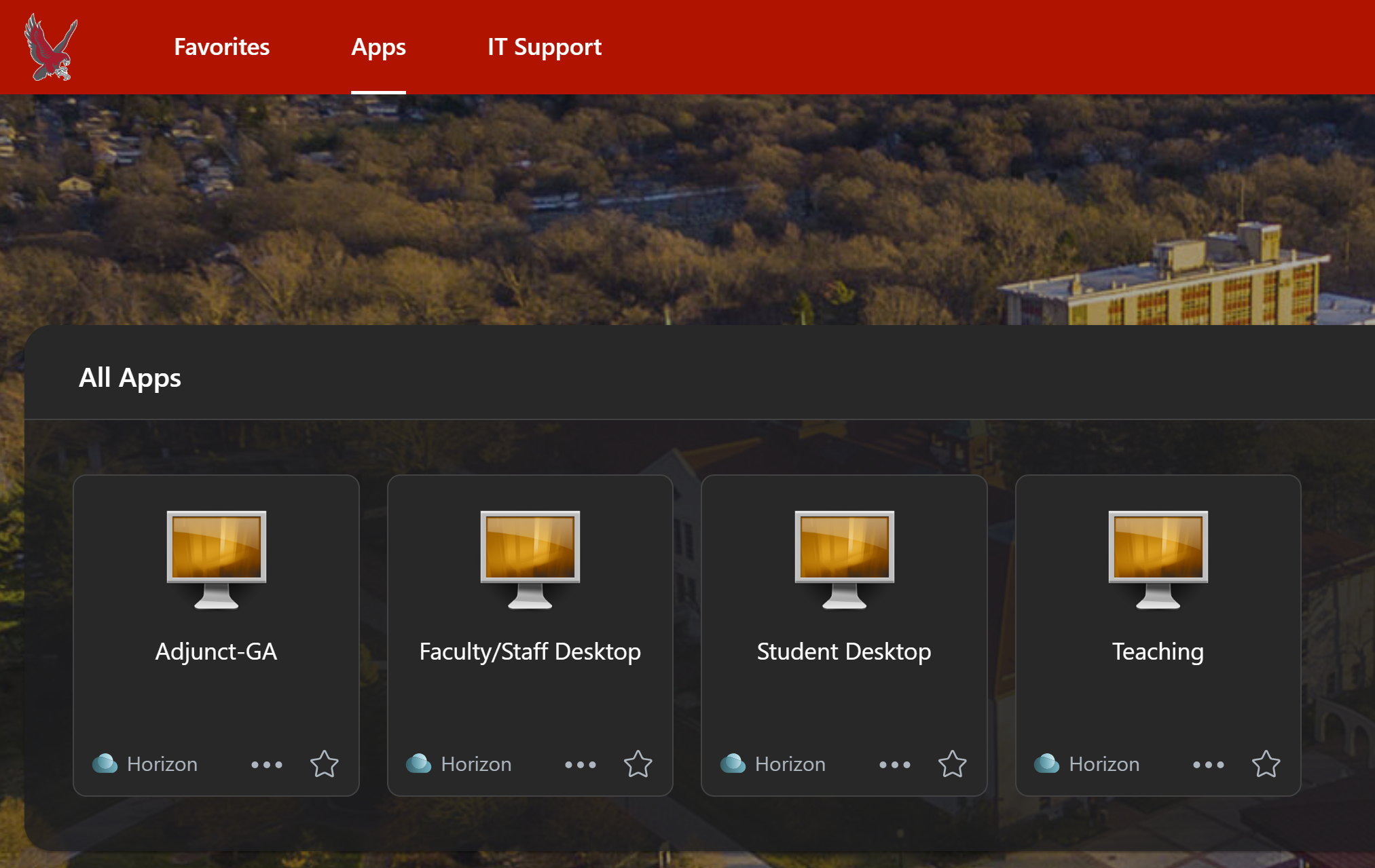
- Wait for desktop to launch and fully load
Once launched, your virtual desktop will function just like a campus computer.
Accessing VDI on Different Devices
Desktop or Laptop
You can access VDI through your web browser.
Best for:
- Teaching, administrative work, and coursework
- Running specialized or high-performance software
- Multitasking with multiple applications
Mobile Devices (Phone or Tablet)
VDI is also accessible on mobile devices using a compatible app or browser.
What to expect:
- Touch-based navigation (tap, zoom, scroll)
- Best for quick access or reviewing files
- Not ideal for long sessions or complex workflows
Tips for a Smooth Experience
- Use a strong and stable internet connection
- Keep your Duo Mobile app updated
- Use a modern browser (Chrome, Edge, or Safari)
- Log out when finished, especially on shared devices
Need Help?
If you experience issues accessing VDI (Omnissa Horizon), contact the IT Service Desk.