
Faculty, staff, emeriti, and affiliates are able to change their University NetID passwords at anytime using the NetID Account Management Center. They will also be able to reset their password via challenge questions.
Faculty, staff and emeriti are encouraged to update their personal email addresses, mobile phone numbers, and emergency contact information in Workday in order to make sure the process is as seamless as possible.
Affiliates are encouraged to update their personal email addresses, mobile phone numbers, and emergency contact information in NEST in order to make sure the process is as seamless as possible.
What is a NetID?
Your University NetID is comprised of your last name, first initial and a number: i.e. smitha1. This is the ID you will use to access the majority of systems and online services on campus. You can manage your NetID via the NetID Account Management Center website.
How do I Reset my Lost NetID Password?
Visit the NetID Account Management Center website and select the “Reset Password for the First Time, or Reset Forgotten or Expired Password” link.
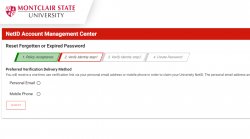
Users must input their University NetID and select Submit.
Users will be prompted to receive a password verification link via email or a verification SMS text message.
- If user selects email verification they will be sent a link to their personal email address with further instructions.
- If user selects SMS text message, they will be sent a verification code to their mobile phone number to input on the reset page.
After verifying their University NetID, the user will be asked to answer one of four Challenge Questions:
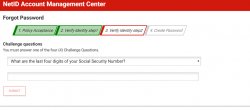
- What are the last four digits of your Social Security Number?
- What is the first and last name of one of your emergency contacts (ex. John Smith)?
- What is the area code+ phone number of one of your emergency contacts (ex. ### ###-####)?
- What are the last four digits of your CWID?
If a user previously confirmed their email address or mobile phone number, they may be asked two challenge questions in lieu of a verification email link or SMS code.
The user will be asked to set their password and confirm their new password.
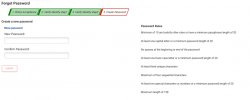
When creating a password, follow the following password rules:
- Minimum of 10 characters and satisfy other rules or have a minimum passphrase length of 20 characters
- At least one capital letter or a minimum password length of 20 characters
- No spaces at the beginning or end of the password
- At least one lower case number or minimum password length of 20 characters
- At least two special characters or numbers or a minimum password length of 20 characters
- Maximum length of 128 characters
You cannot use a previously used password.
After successfully creating their new password, the user will be able to login to any service requiring their University NetID and password.
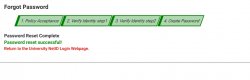
The user will also receive an email to their personal email address confirming that they had recently changed their password and steps to take in case this was done maliciously.
How do I Change my NetID Password?
If a user wants to change their password, they can log into the NetID Account Management Center website using their NetID and current password.
Upon logging in, users may need to read and accept the Montclair State University IT Policies and Procedures.
After logging in, users can use the menu on the front page to “change the password on your already active account”

On this page, the user must enter their current password, their new password and answer a challenge question.
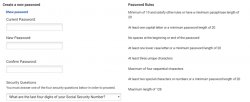
The Challenge Questions consist of the following questions:
- What are the last four digits of your Social Security Number?
- What is the first and last name of one of your emergency contacts (ex. John Smith)?
- What is the area code+ phone number of one of your emergency contacts (ex. ### ###-####)?
- What are the last four digits of your CWID?
Please Note: Users can only skip each challenge question one time.
When creating a password, follow the following password rules:
- Minimum of 10 characters and satisfy other rules or have a minimum passphrase length of 20 characters
- At least one capital letter or a minimum password length of 20 characters
- No spaces at the beginning or end of the password
- At least one lower case number or minimum password length of 20 characters
- At least two special characters or numbers or a minimum password length of 20 characters
- Maximum length of 128 characters
- After the user successfully changes their password, they will be returned to the main University NetID webpage with a success message.
- The user will also receive an email to their personal email address confirming that they had recently changed their password and steps to take in case this was done maliciously.
Multifactor Authentication
All faculty and staff are required to install the DUO mobile app on their device for Multifactor Authentication.
- How do I Set Up MFA Authentication?
- MFA Frequently Asked Questions (Scroll down to FAQs)