
Duo Multi-Factor Authentication (MFA) is a service that adds an extra layer of protection to user accounts by requiring additional steps of verification before granting access.
This helps prevent unauthorized access, even if passwords are compromised.
MFA (Multi-Factor Authentication) is a security process that requires users to provide two or more forms of verification to access an account or system. These factors typically fall into three categories:
- Something You Are – A username, NetID, or Biometrics such a fingerprint or facial recognition
- Something You Know – A password or PIN
- Something You Have – A phone, security hardware key/token, or authentication app (Duo)
By requiring multiple factors, MFA makes it harder for hackers to gain unauthorized access to your account, even if they have your password.
Duo MFA is important because it adds an extra layer of security to your university accounts, protecting them from hackers and phishing attacks.
Here’s why it matters:
1. Protects Against Stolen Passwords
If someone gets your password (through phishing, weak credentials, or other means), they still can’t access your account without an additional authentication factor.
2. Easy and Fast Verification
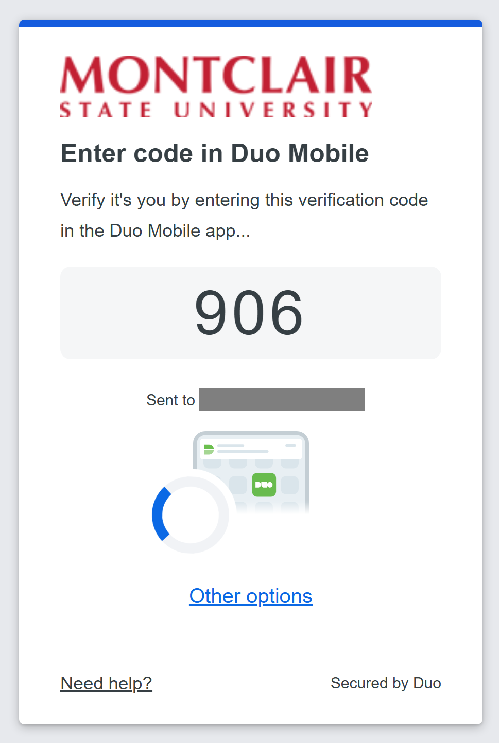
Duo makes multi-factor authentication simple by sending notifications to your phone. Using duo push, enter the code on your computer screen into the Duo Mobile App when prompted. If you are using mobile codes, the code in your Duo App is entered on your computer screen.
3. Stops Unauthorized Access
If someone tries to log in to your account from an unknown device, Duo will alert you, giving you the chance to deny access and report the fraud activity back to a Duo administrator, keeping your information safe.
4. Works Across Multiple Services
The Duo mobile app can be used to protect other types of accounts beyond the university NetID account. When setting up MFA for banking, shopping, personal email accounts, or social media, use Duo when it is offered.
Recommended
Smartphone/Tablet: This is the most common, convenient, and secure method of using Duo.
- The Duo app allows you to verify through PUSH notifications or a code in the Duo App.
Alternative
Non-Smart Cellular Device: If your cellular device cannot run the Duo app you may choose to receive SMS text messages (standard messaging fees may apply)
Note: Montclair State University will never share the information entered in the device enrollment process, including cell phone and landline number(s), with other internal or external services.
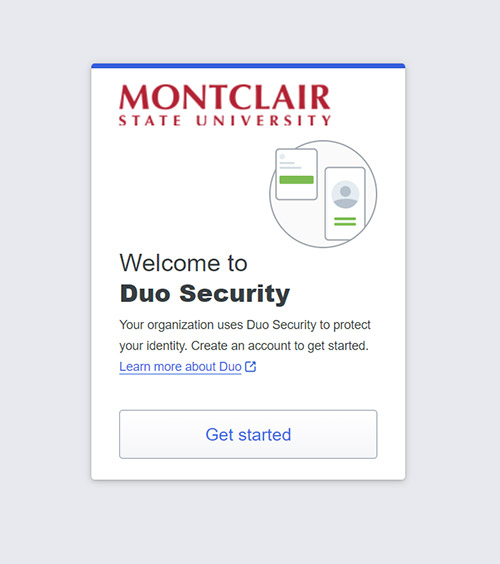
Important: Please ensure to download the Duo app via your mobile device App Store prior to completing this process. (Available on Apple iOS and Google Play Store) Enrollment is performed via the Duo prompt Once you have installed the Duo app, access any Montclair service such as NEST or Workday to start the setup process. Step 1: Add your device(s) – If you are adding multiple devices they must be entered on this window – Ensure that Duo Mobile (Recommended) is selected – At this time, the University does not provide hardware security keys (YubiKey, FIDO2, Token2). While Duo supports these options, users have to purchase their own Step 2: Enter your phone number including area code – No parentheses or dashes required Step 3: Confirm your phone number Step 4: Confirm ownership – Select Send me a passcode – Once passcode is received, enter in the 6 digit code – You will be prompted to download the Duo Mobile app if you have not already Step 5: Duo Mobile QR Code – Scan the QR Code on the screen or chose to receive an activation link Step 6: You have successfully set up Duo once you hit Continue Note: You can optionally add additional devices for MFA. It is recommended to add an additional device in case your primary is unavailable. FEATURE Duo PUSH Duo SMS Security High – uses end-to-end encryption and resists phishing and man-in-the-middle attacks Lower – vulnerable to SIM swapping, phishing, and SMS interception Ease of Use Very easy – approve login with one tap in the Duo Mobile app Requires user to enter a passcode manually Speed Fast – real-time push notifications Slower – wait for SMS delivery Internet Required Works either way No – works without internet (just cellular service) User Experience Seamless and modern Less convenient, more prone to user error Recommended For Most users and secure environments Backup option if push or smartphone app isn’t available You will need to contact the IT Service Desk to let them know that the option isn’t available for you. Phone: 973-655-7971, option 1 Email: itservicedesk@montclair.edu Note: These instructions are for reactivating Duo Mobile on a new device with the same phone number. You will need to have the Duo Mobile app installed prior to completing this process. Step 1: Access a Montclair service such as NEST or Workday Step 2: Select Other Options via the Duo authentication screen Step 3: Select Manage Devices Step 4: Verify your identity Step 5: Select I have a new phone on the previously registered device Step 6: Select Get Started on the phone setup screen Step 7: Confirm ownership – Select Send me a passcode – Once passcode is received, enter in the 6 digit code – You will be prompted to download the Duo Mobile app if you have not already Step 8: Duo Mobile QR Code – Scan the QR Code on the screen or chose to receive an activation link Step 9: You have successfully set up Duo once you hit Continue If you’ve accidentally shared your Duo two-factor authentication (2FA) codes — whether in a phishing email, over the phone, or via a suspicious website — it’s important to act quickly to protect your account and campus data. Even one shared code can allow someone to access your personal or university information. If you ever receive a Duo push notification you didn’t request, it could mean someone is trying to access your account without permission. That’s where the Fraud button comes in. When you see a Duo push on your phone that you did not initiate, tap “Deny” and then select “It seems fraudulent.” This action alerts the INFOSEC team and helps us investigate potential threats to your account and campus systems. You should then reset your NetID password immediately. If an attacker can make a fraudulent Duo request, that means they know your login credentials already. Using the Fraud button helps stop cyberattacks early and protects not only your account, but the whole university community. The Duo Mobile App does not have access to your personal data or information. The app is safe to utilize on your personal mobile device. You can still connect to Montclair application(s) or VPN using Duo as long as you ensure the following: If you do not have access to WiFi you can use the Duo mobile code. For support regarding Duo, please contact the IT Service Desk at 973-655-7971, option 1, or by email at itservicedesk@montclair.edu for assistance.
Initial Enrollment
Duo Push vs Duo SMS
I don’t have the Duo Push option, help!
Adding a New Device with Same Number
I gave away my Duo code(s), help!
Steps to Take Immediately:
Go to the NetID Account Management Center and change your password. This will prevent further access using your compromised credentials.
Contact the IT Service Desk to report what happened. This helps us secure your account and others.
Check for any unfamiliar logins or activity in your MSU account like email, learning platforms, or campus portals.
Your Duo setup may need to be reset to ensure only you can approve logins.
If you were tricked once, scammers may try again. Be cautious of future messages asking for codes, passwords, or sensitive info.
What Is the Duo “Fraud” Button and When Should I Use It?
Why It Matters:
Does Duo have Access to my Personal Data?
International Travel Duo Use
Still Need Help?